Step-by-Step Guide
Pick your computer type
Not sure? If you bought a PC or laptop (HP, Dell, Lenovo, Asus etc.) — choose Windows. If you have a MacBook or iMac — choose Mac.
1
Your BlueStacks download has started
Find the file in your Downloads folder
Your download started automatically when you clicked Windows above. Look for a file called BlueStacksInstaller.exe in your Downloads folder (bottom of your screen or in File Explorer → Downloads).
Your browser may ask "Keep this file?" — click Keep or Save. It's safe and comes directly from BlueStacks.
Download didn't start? Click here to download again.
2
Run the Installer — Click "Install now"
Find the downloaded file and double-click it
Open your Downloads folder and double-click the BlueStacks file. When the installer opens, click the big "Install now" button. Wait 2–5 minutes for it to finish.
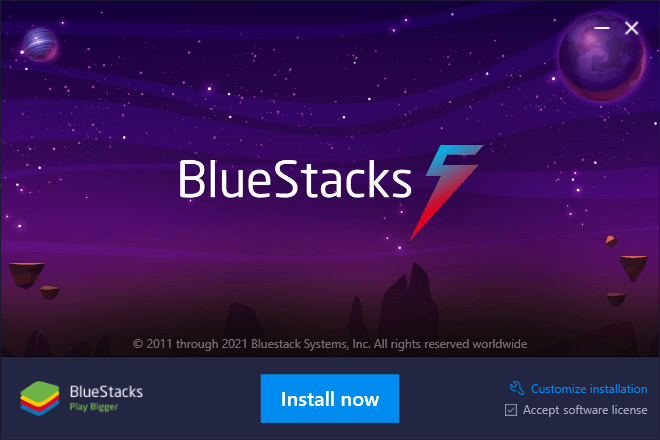
👆 Click "Install now" — then wait for the progress bar to finish
Windows blue screen warning? Click More info → then Run anyway. This is a standard Windows safety message — BlueStacks is completely safe.
Don't close the window while it installs. Your computer may feel slow for a minute — that's normal.
3
BlueStacks Opens — No Login Needed!
Just close any sign-in screens and you're ready
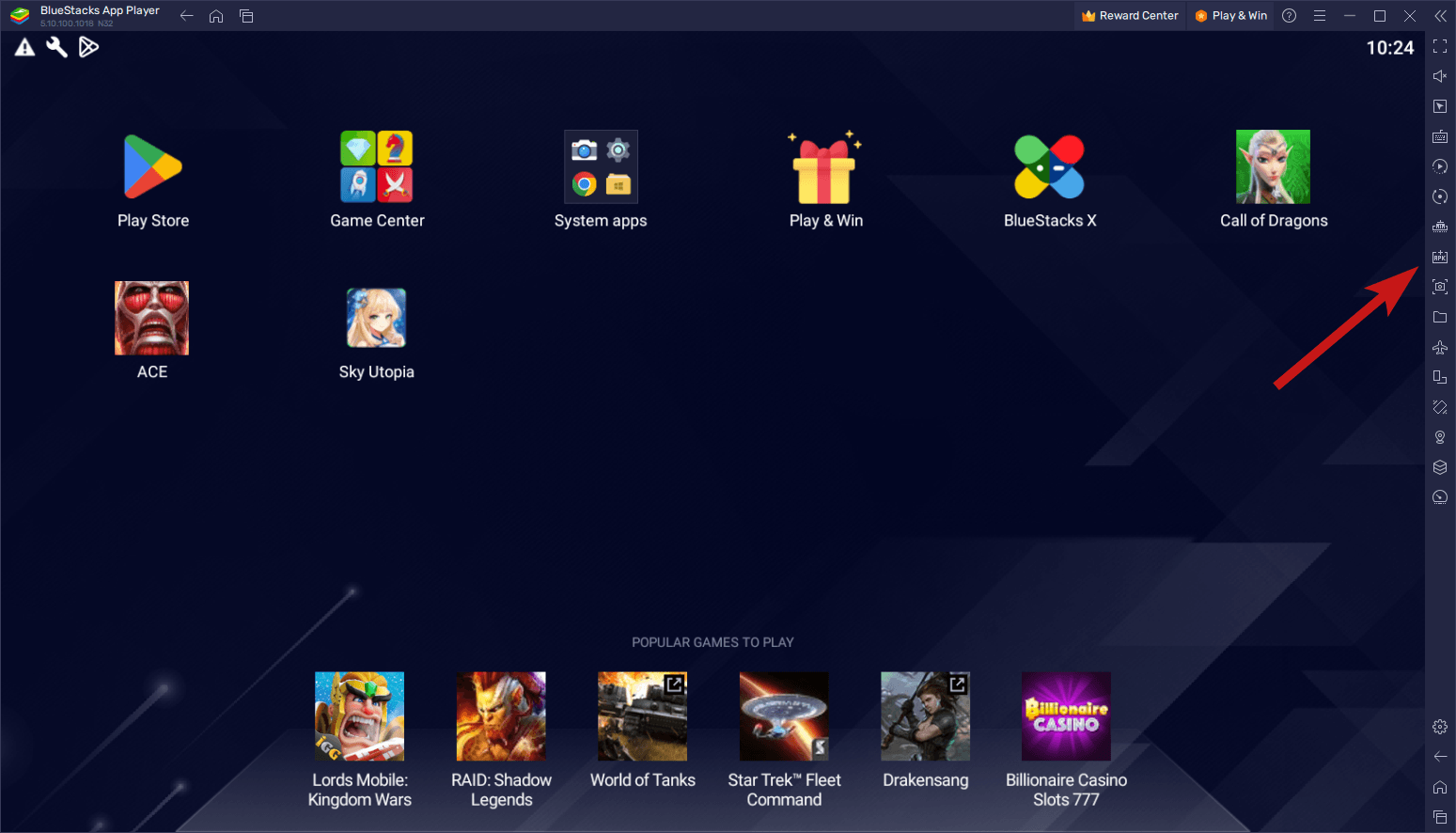
BlueStacks will open automatically when installation finishes. It looks like an Android phone screen on your computer. You do NOT need to sign in or create any account. If you see a Google sign-in screen, just click Skip or close it.
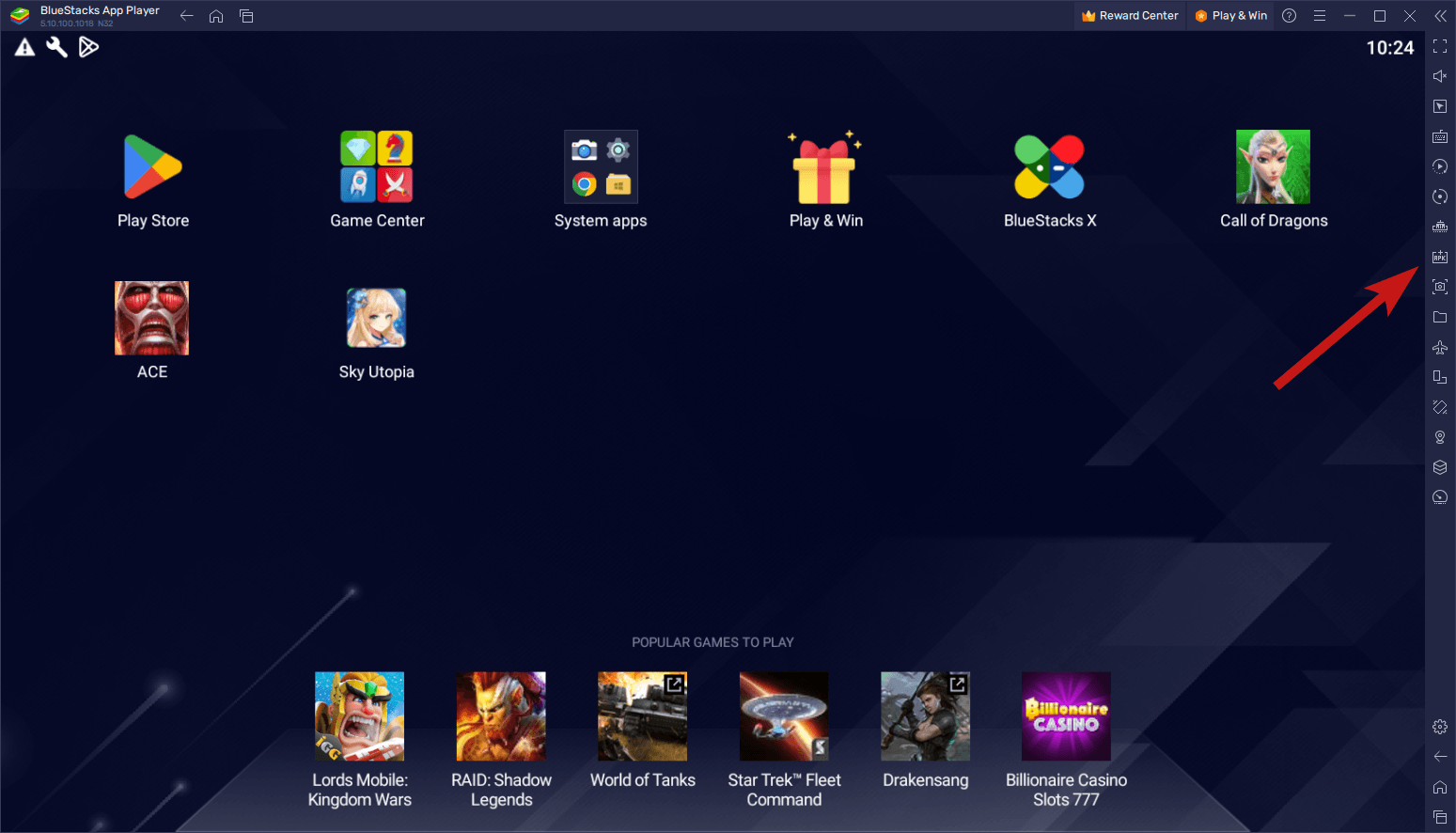
✅ This is what BlueStacks looks like when it's ready — no login needed!
No account required: Skip any Google sign-in screens. BlueStacks works perfectly without any account.
4
Download the MYIDverified App
Click below to download the app file (APK)
Click the button below to download the MYIDverified app. You'll get a file called MYIDverified.apk in your Downloads folder. This is the app itself.
🛡️ Download MYIDverified APK — Free
The file will appear in your Downloads folder as MYIDverified.apk — keep it there, you'll need it in the next step.
5
Install MYIDverified into BlueStacks
3 easy ways — pick whichever works for you
Make sure BlueStacks is open. Then use any one of these 3 methods to install MYIDverified:
Method A — Drag & Drop (Easiest!) 🏆
Open your Downloads folder. Find MYIDverified.apk. Click and hold it, then drag it onto the BlueStacks window and let go. BlueStacks will install it automatically.
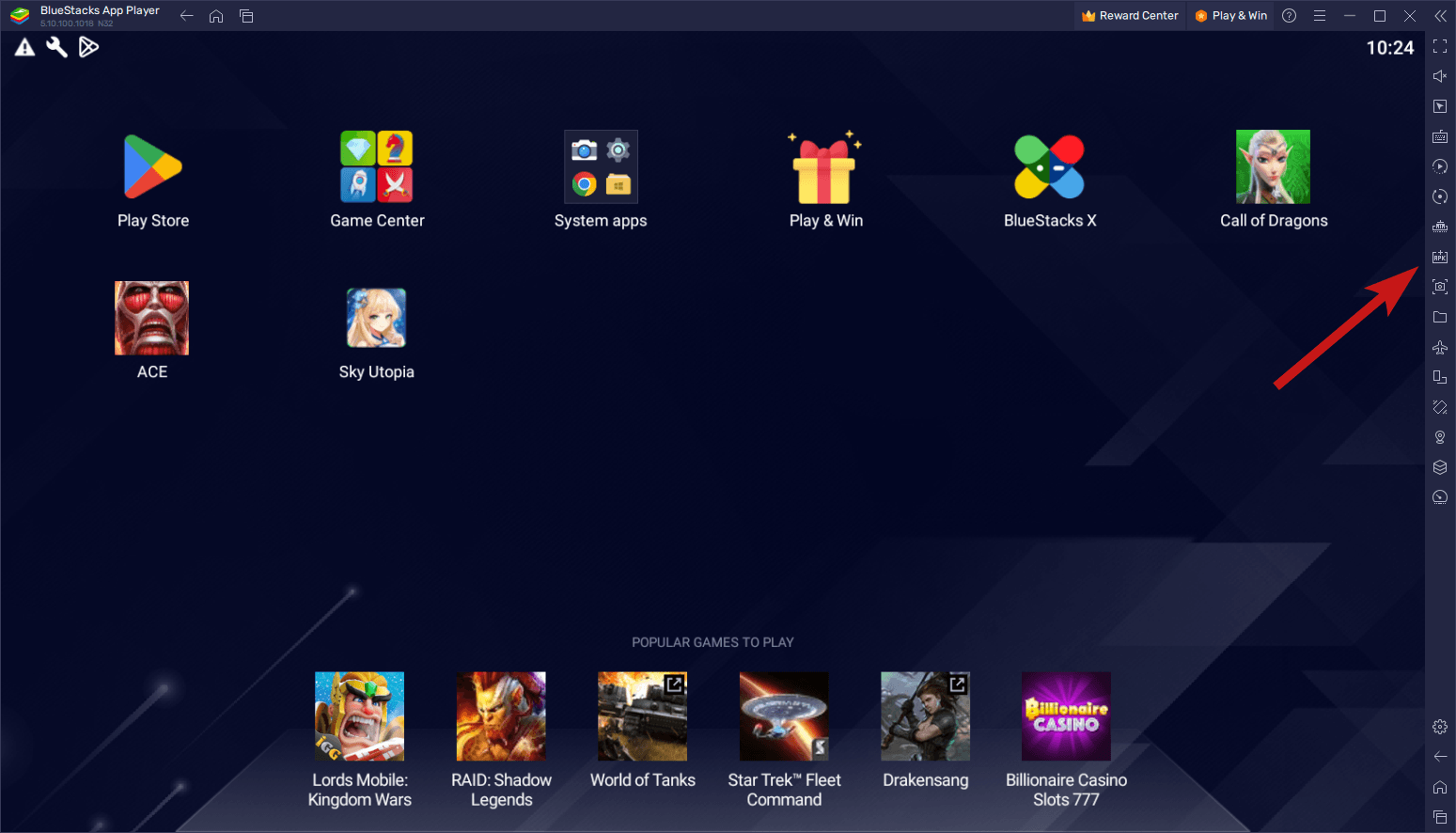
👆 Drag the MYIDverified.apk file from your Downloads folder and drop it onto BlueStacks
Method B — Double-Click the File
Go to your Downloads folder and double-click the MYIDverified.apk file. BlueStacks will open and install it automatically.
If double-clicking doesn't work, right-click the file → Open with → BlueStacks
Method C — Use the "Install APK" Button in BlueStacks
In BlueStacks, click My Games tab at the top. You'll see a box with a + sign that says "Install local APK". Click it, then browse to your Downloads folder and select MYIDverified.apk.
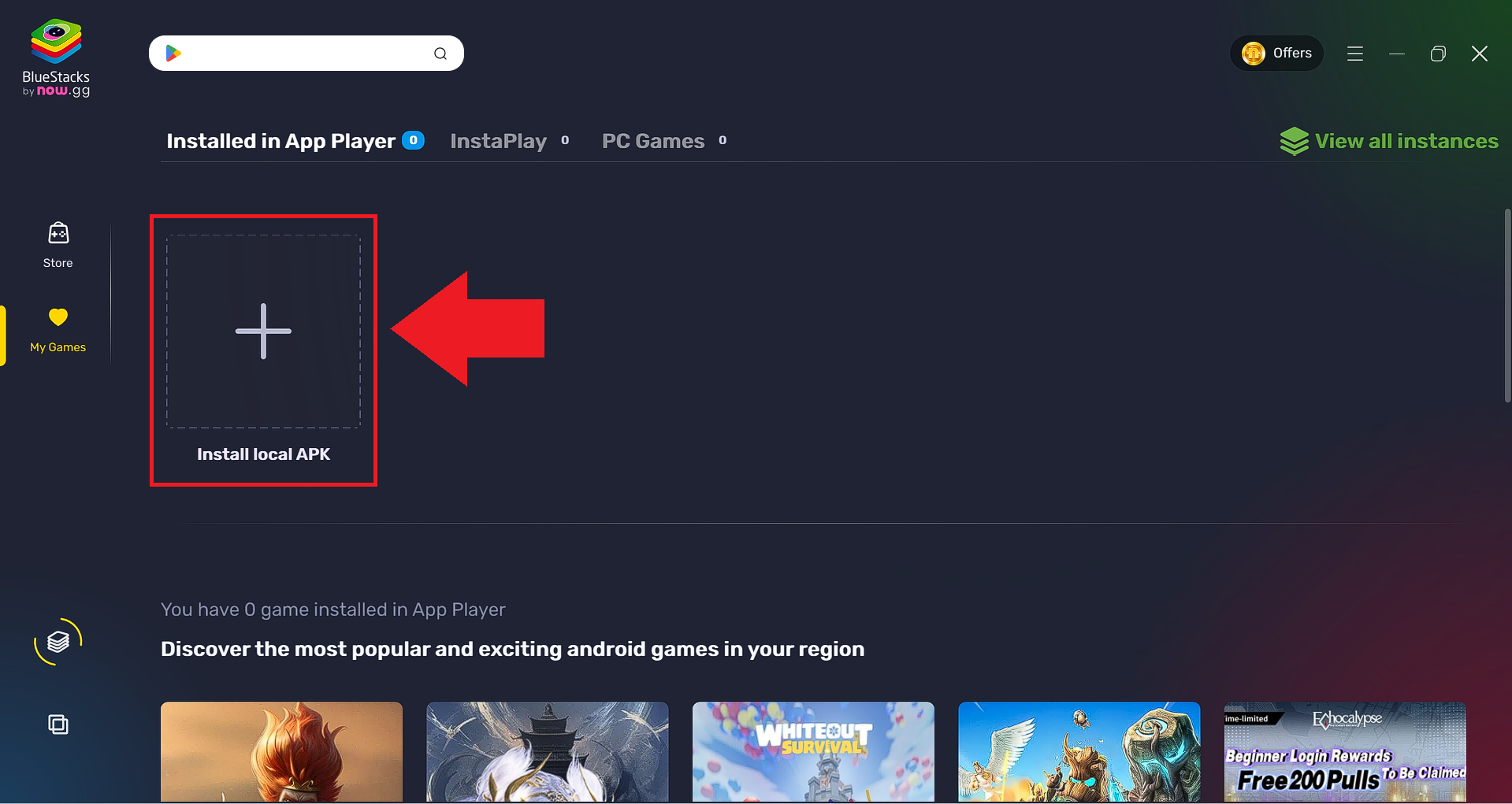
👆 Click the "Install local APK" box with the + sign (the red arrow shows exactly where)
6
🎉 You're Done! Open MYIDverified
The MYIDverified shield icon will appear on the BlueStacks home screen
After installing, the MYIDverified shield icon will appear on the BlueStacks home screen. Double-click it to open the app. Create your account, activate your protection, and you're fully protected — right from your desktop!
✅ Your app icon appears on the BlueStacks home screen — double-click to open!